Did you know that you can create markups using an image from a PDF using the Snapshot tool?
First, go to Edit > Snapshot and drag a box around the shape you want to use as a markup.

Then, click anywhere on the PDF and select Paste.

Right click on the shape and select Properties. You can make any changes to the markup’s properties like color, opacity, etc.
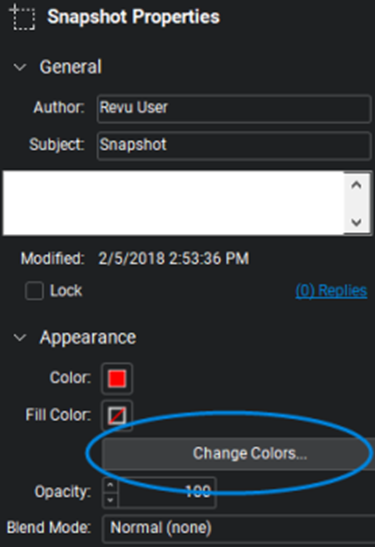
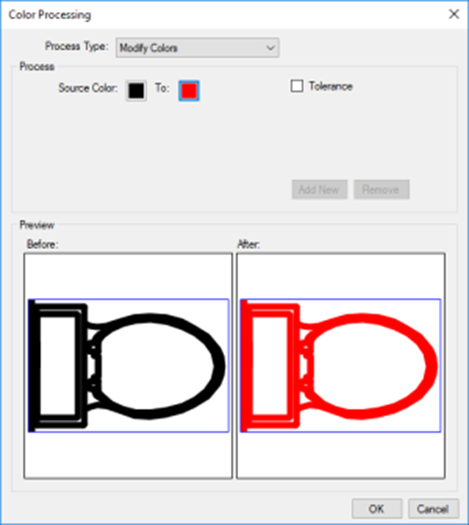
Now you can place your new markup anywhere you need on the PDF!

To save your markup for later, right-click it and select Add to Tool Chest.
Let us know down below in the comments:
- Do you have a favorite/most useful markup you have made using the Snapshot tool?
- Has this feature helped you save time and improve your efficiency when working?

