This week, we're highlighting how to change the font in the Typewriter and Text Box tools in Bluebeam Revu! 🖍️🖌️
When adding notes, comments, or callouts, adjusting the font style and size can help your markups look more professional, readable, and consistent across project teams.
➡️Here’s how to update the font in a Typewriter or Text Box markup:
- Select the markup by double-clicking it on your PDF
- Open the Properties panel
- Go to Window > Panels > Properties OR press ALT + P for a keyboard shortcut!
- In the Appearance section, locate the Font settings. From here, you can customize:
- Font type (PDF-safe or embedded fonts)
- Font size (including Auto-fit sizing)
- Bold, Italic, Underline, and more
- Line spacing, margins, and alignment
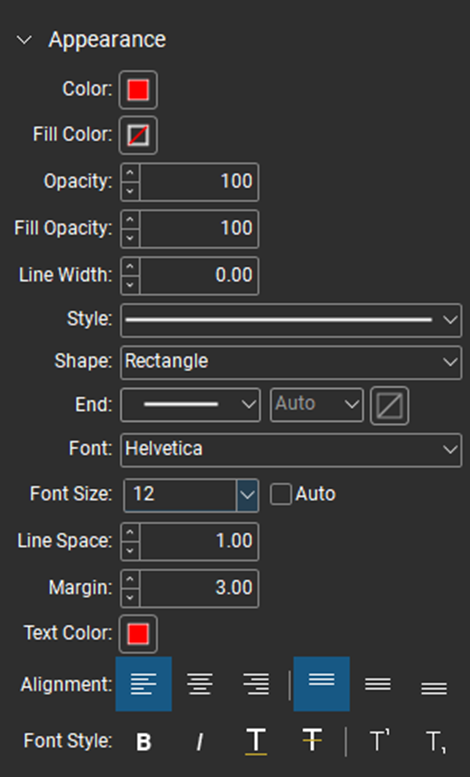
These font controls make it easier to create clear, standardized markups—especially when collaborating across large drawing sets.
🗃️Resources:
🪄Helpful tips:
- Font and style options are also available directly in the Properties toolbar when the markup is selected for quick edits.
👇️Share with us your thoughts on font customization:
- Do you and your team standardize fonts across markups?
- How often do you need to change your fonts?
- How could consistent font formatting improve communication on your projects?

