This week, we're highlighting how to match markup colors instantly using the Eyedropper tool in Bluebeam Revu!
Keeping your markups visually consistent is key—especially when teams use color to represent trades, status updates, or review comments.
Instead of manually selecting the same color each time, Revu makes it easy to match colors with one click.
➡️Here’s how to match colors using the Eyedropper tool:
- Select your markup
- Go to the Properties Toolbar
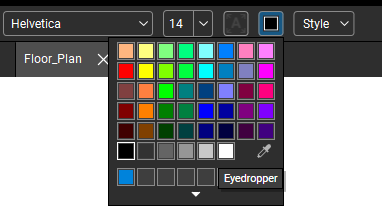
- Open the Color picker (Text Color, Border Color, Fill Color, etc.)
- Click the Eyedropper tool icon
- Then click anywhere on the PDF to sample and apply that exact color
✨This is perfect for:
- Matching existing markup styles
- Keeping tool sets consistent
- Aligning annotations with project standards
- Speeding up repetitive formatting work
- Matching your organization’s brand colors
Resources:
👇️Share with us your thoughts on using the Eyedropper tool!
- Did you know it existed?
- Do you use it frequently to create custom markups?

