No jokes here - just a feature highlight!
Did you know that you can use the Color Processing tool in Bluebeam Revu to quickly manipulate the colors of a PDF to improve readability, simplify documents, or prepare files for printing and sharing.
Color Processing is beneficial when working with multi-color plans, scanned documents, or drawings that need to meet specific visual or printing standards.
⚠️Be aware that performing this action on a page containing flattened markups will prevent all markups on the page from being unflattened.
➡️Here's how to start color processing & set the process type:
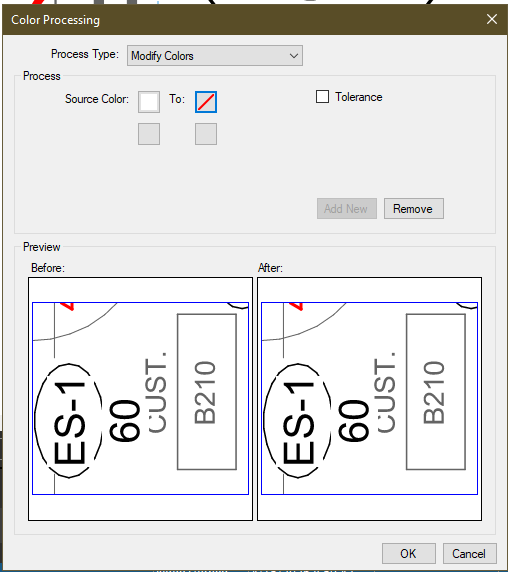
Step 1: Go to Document > Color Processing. The Color Processing dialog box appears.
Step 2: Select the desired mode from the Process Type list. The options available will depend on your selection. More information on each mode follows:
- Modify Colors: Replaces selected colors found in the PDF with other colors (only affects vector elements in the PDF file)
- Colorize: Converts all colors in the PDF to a single color scale
- Grayscale: Converts all colors in the PDF to a grayscale
- Pprocesses vector data by default with an option to also process raster images.
- Black and White: Converts all colors in the PDF to monochrome black-and-white (converts all vector data to black)
- Luminosity, Saturation, and Hue: Transforms all colors in the PDF by luminosity, saturation, and hue. Color Processing options in this mode are:
- Saturation: Move the slider to define the saturation.
- Hue: Move the slider to define the hue.
- Process Images: Fill this check box to also process raster images.
- Pages: Select from: All Pages, Current, Selected and Custom
- Mask Images: Creates a transparent area in an image corresponding to a single color. Choose a color of images on a PDF page to be transparent. Markups are not processed. Color Processing options in this mode are:
- Mask Color: Select the color that will become transparent.
- Tolerance value: Click the up and down arrows to define the color tolerance.
- Pages: Select from: All Pages, Current, Selected and Custom
🪄Helpful tips:
- Use the Preview thumbnails in the dialog box to confirm changes before applying them.
🗃️Resources:
👇️ Share with us your thoughts on using Color Processing in Revu:
- Do you or your team ever need to adjust colors in your PDFs before reviewing or printing?
- Are you most likely to use Color Processing to: convert drawings to grayscale/black & white, replace specific colors, or mask image backgrounds?
- How do you think Color Processing could improve clarity and consistency in your workflows?