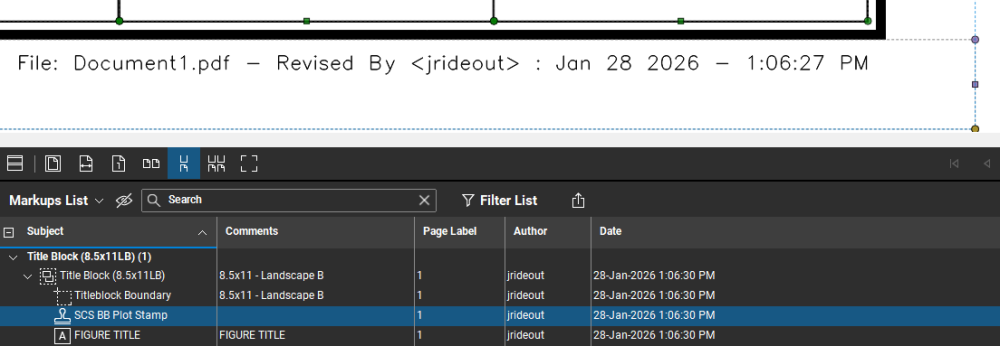
This week, we're highlighting the Custom Stamps feature in Bluebeam!
It’s a simple, yet powerful way to standardize approvals, reviews, and document status across your workflows.
With Custom Stamps, you can create reusable stamps that automatically populate key information like the user’s name and date.
➡️Here’s how:
#1 Go to Tools → Stamp → Create Stamp → The Create Stamp dialogue box will appear.
- Enter a Subject (this is the name you’ll see in the Stamps list and Markups list).
- Confirm or update the Author name.
#2 Enter a memorable name for the stamp in the Subject field.
#3 Choose a template from the Template menu as a starting point.
- Blank – start from scratch.
- Text – adds the Subject text.
- Text with Border – adds text with a square border.
- Text with Date and Border – adds text plus automatic date/time fields.
- Text with Rounded Border – adds text with rounded corners.
#4 Set the Width and Height (in inches) as well as the Opacity and Text Color & Line Color.
#5 Click OK. The PDF stamp editor appears with the raw form of your stamp.
#6 Edit Text: Double-click the text to edit it.
#7 The dynamic elements of the stamp are identified by their format.
#8 Customize the appearance: Select the desired part of the stamp and make changes on its
- Set the Width and Height of the stamp.
- Adjust Opacity, Rotation, and Blend Mode.
- Define default Text Color and Line Color.
- Click OK to open the stamp in edit mode.
#9. Add your logo!
- From File or press I on the keyboard. The Open dialog box appears.
- Select the desired image file and click Open.
#10 Save. Your stamp is added to your stamps list and you can use it any time by going to Tools > Markup > Stamp and selecting it.
➡️ Check out the full how-to article here: Custom Stamps
Other helpful tips:
🔵Working with Stamps
🔵Edit like a pro
- Resize the stamp using the blue handles along the dashed boundary.
- Add or edit text, graphics, or dynamic fields (like date and time).
- Custom stamps are saved as individual PDF files for reuse across projects.
🔵Manage your stamps
- Import stamps: Go to Tools > Stamp > Import Stamp to add existing stamp PDFs.
- Delete stamps: Right-click a placed stamp, open Properties, and click Delete (permissions required).
👇️ Share below!
- What's a Custom Stamp you've created to improve your work? If you're feeling community-like, share the Stamp!
- OR if you just learned about Custom Stamps - what's a stamp you're going to create soon?!